Setting up Aria Automation 8.16 using LCM
First step is to login to LCM and Apply Product Support Pack (Click Lifecyle operations, settings, product support pack, check support packs online) | https://yourLCM.url.com/lcm/lcops/settings/pspack

Check request details

Add the Binaries

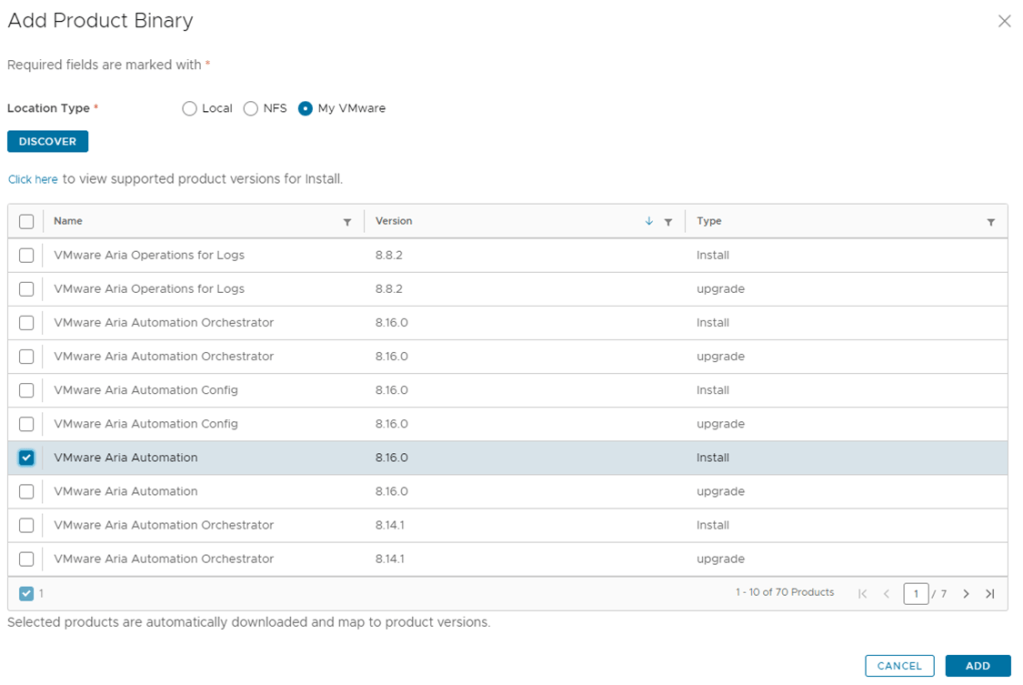

Once Completed click on “Create Environment on the left navigation”

Enter your Details
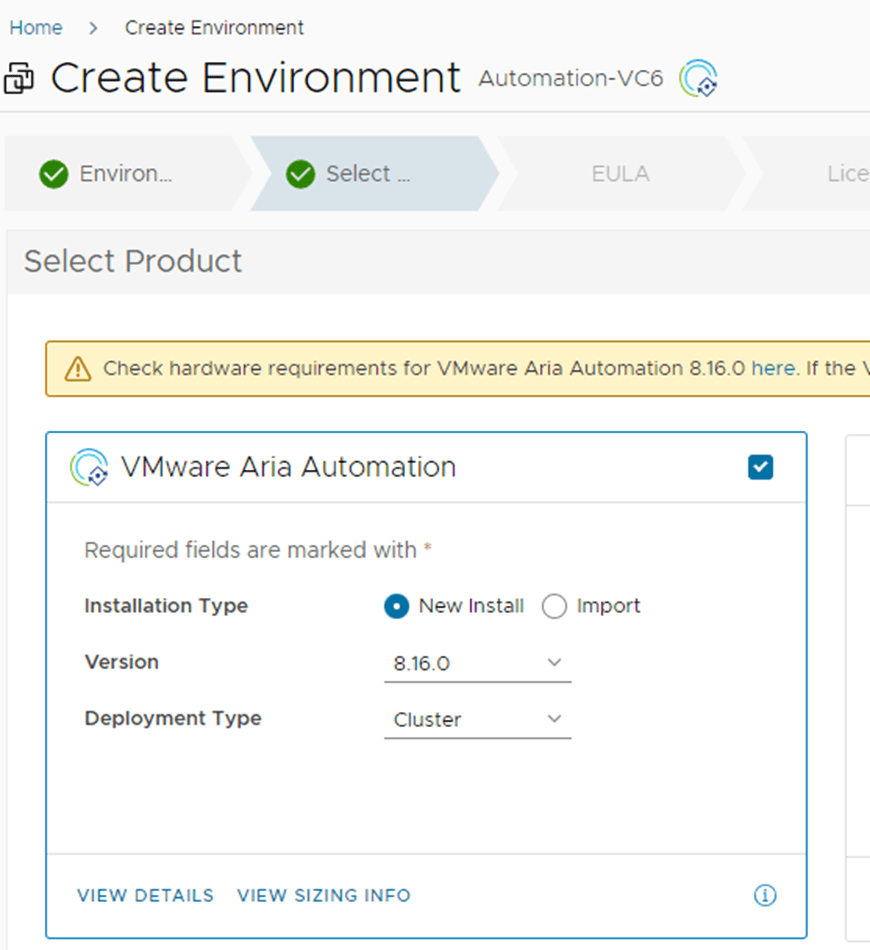
Click on the VMware Aria Automation Box (use standard for deployment type if you don’t need a cluster)
Accept EULA
Assign your license (Select on the license then click Validate Association)
Select a certificate (you can use a self signed certificate or create a custom one)
Infrastructure


Enter your network details on the next screen
When you are in the Products section select the node size, FQDN, IP, VM name
Click next when finished
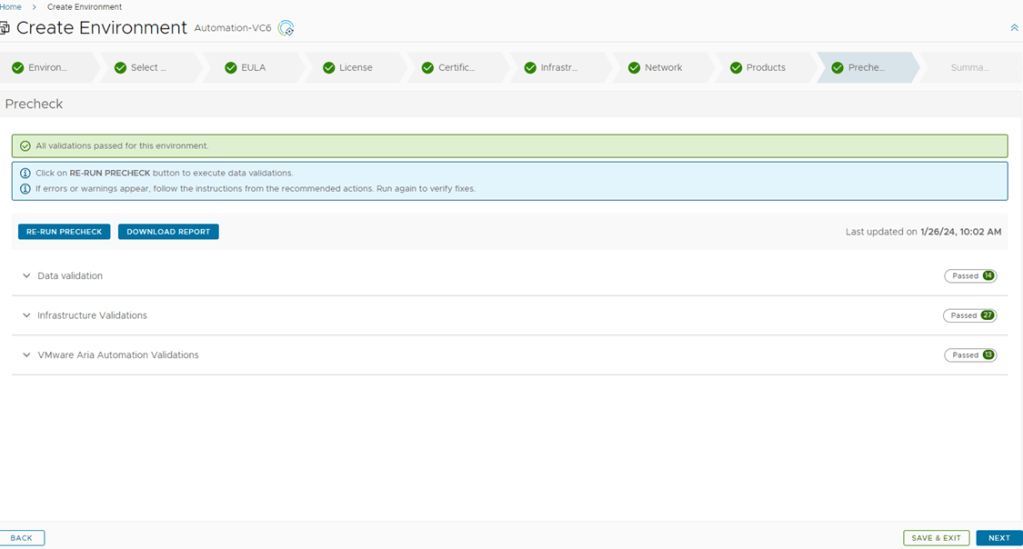
Run the pre-check
Click Next if everything looks good
Submit and wait until the environment is setup

Once done you are ready to login

It is important to use the “Configuration Admin” account you have in VIDM not local/super admin.
If you are not sure about the password login to VIDM as the local admin and edit the account.
Once logged in you use the QuickStart for a quick setup

Stay tuned for my post about creating your new blueprint
 Tech Dad
One response to “Install VRA (Aria Automation) 8.16 using LCM”
wow!! 1Navigating the Changes at VMware Explore 2024: Should We Be Concerned About the Future?
LikeLike