Look, I know you’ve seen the https://knowledge.broadcom.com/external/article/372863 (Upgrade vCenter Server 7.0 to 8.0), but sometimes you just want a real human to walk you through it without the corporate jargon, right?
So here we are.
Before You Touch Anything:
- Read the compatibility matrix (I know it’s boring, but do it anyway)
- Test your login credentials for vCenter, VCSA, and ESXi, now’s not the time to discover you can’t remember your password
- Confirm with your backup team that the last appliance backup actually succeeded
- Log into VCSA and verify storage health
- Check your certificates (covered in Step 3 below)
The Upgrade Process:
1. Take a snapshot
You know why. Do it.
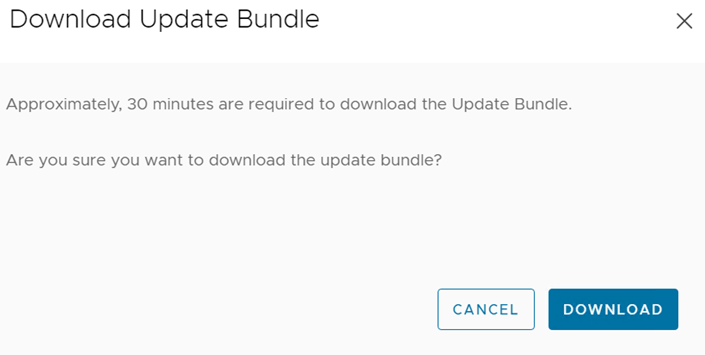
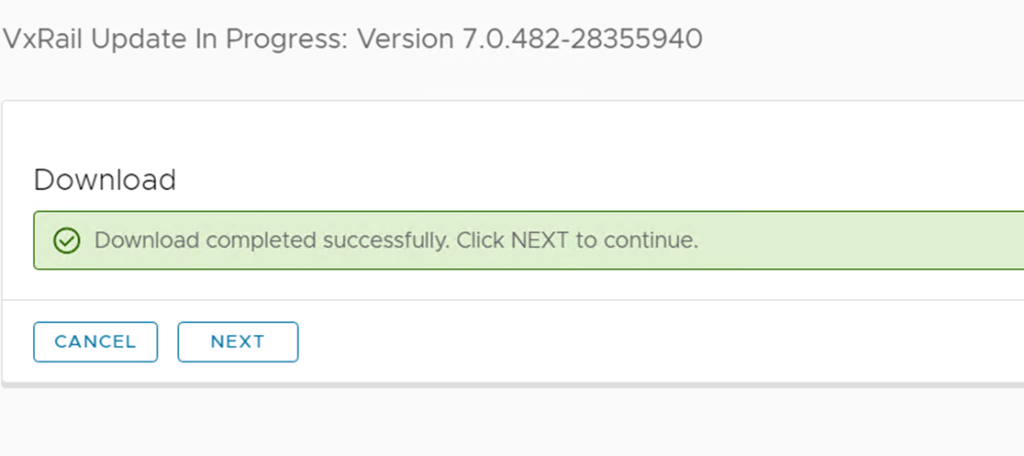
2. Download the ISO
Get the vCenter 8.0 installer from VMware.
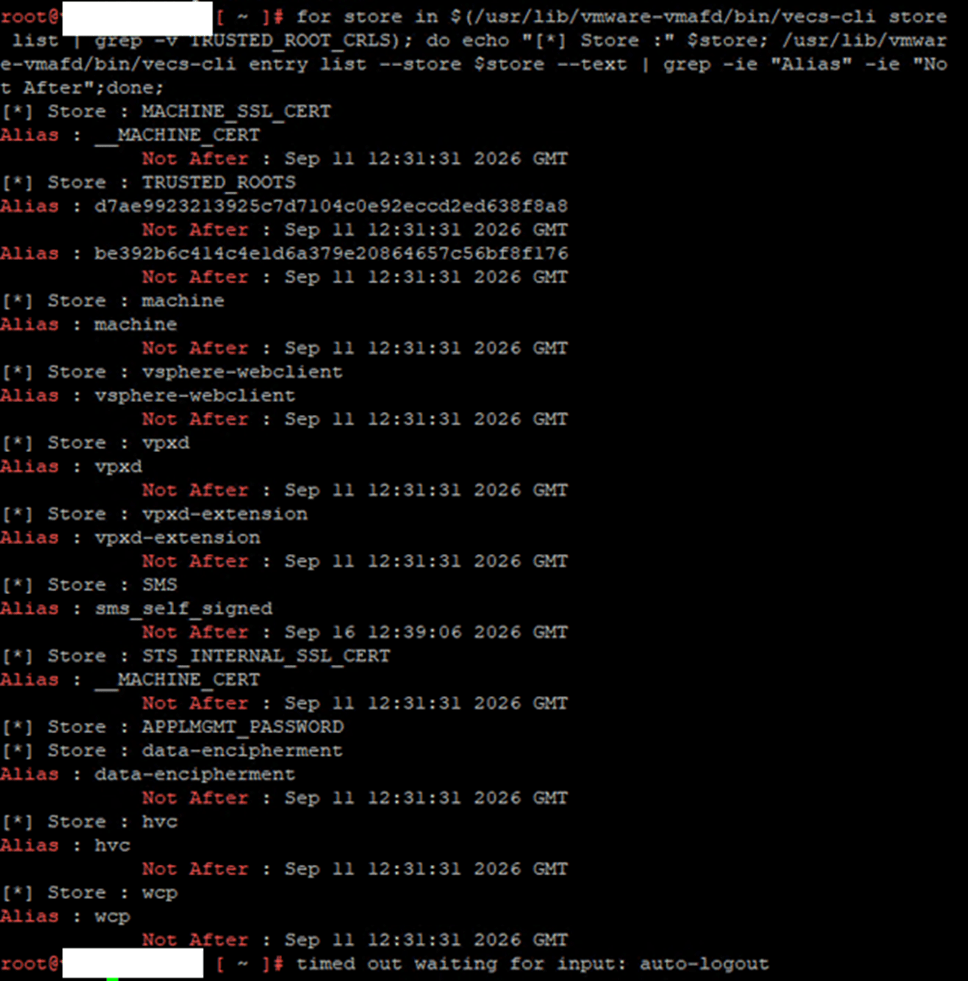
3. Run certificate prechecks
Make sure nothing’s expired or about to cause you grief mid-upgrade.
for store in $(/usr/lib/vmware-vmafd/bin/vecs-cli store list | grep -v TRUSTED_ROOT_CRLS); do echo “[*] Store :” $store; /usr/lib/vmware-vmafd/bin/vecs-cli entry list –store $store –text | grep -ie “Alias” -ie “Not After”;done;
4. Note your current vCenter host
Document which ESXi host is currently running your vCenter appliance.
5. Verify VCSA storage
Check available disk space and storage health one more time.

6. Mount the ISO and launch the installer
Navigate to vcsa-ui-installer\win32 (assuming you’re on Windows).

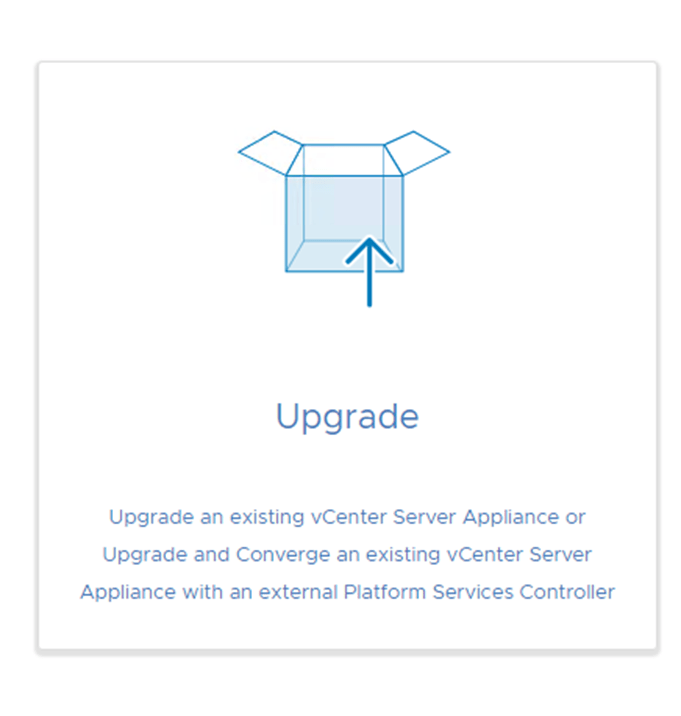
7. Click “Upgrade” and follow the prompts
- Enter your existing appliance details
- Specify the target ESXi host for the new appliance
- Configure network settings
- Review everything carefully
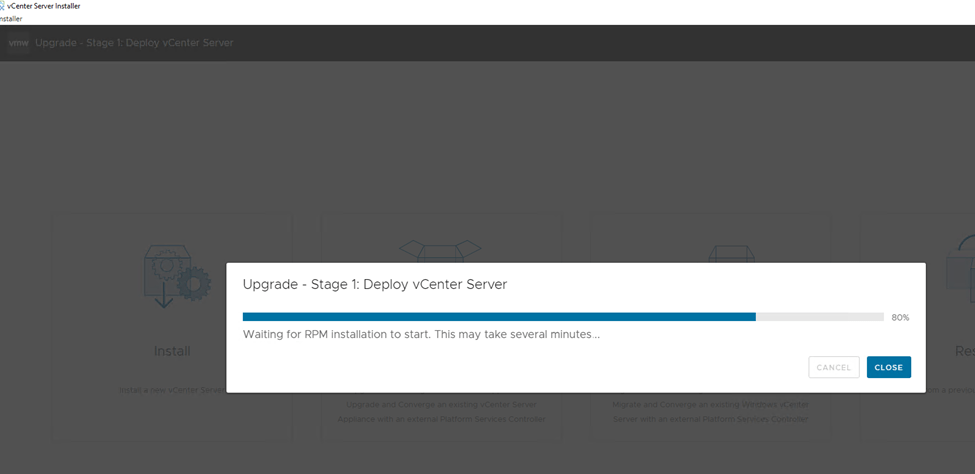
8. Be patient during Stage 1
This is where the new appliance deploys. Go grab coffee. Maybe a snack.
9. Continue to Stage 2
- The installer will run pre-upgrade checks
- Select which data to migrate
- Review your selections one last time
10. Be patient again
Stage 2 takes a while. This is normal. Don’t panic.

11. You’re done!
If everything completed successfully, congratulations, you’ve just saved yourself from running an unsupported vCenter environment.

Pro tip: If something goes wrong, that snapshot you took in Step 1 is about to become your best friend or maybe that backup as a last resort










 Tech Dad