• About
    • Archive of all the posts in my previous site
    • VMWorld / VMExplore

Tech Dad

  • Navigating the Changes at VMware Explore 2024: Should We Be Concerned About the Future?

    August 29th, 2024

    **Disclaimer:** I am not affiliated with VMware nor have I received any sponsorship. These are my honest reflections as a customer.

    Attending this year’s VMware Explore provided me with deeper insights into the future of a product many of us have grown to love—VMware. Compared to last year, this event had fewer attendees, a smaller expo (noticeably missing EUC vendors), and a smaller hub. However, the food was improved, and the sessions were as informative as ever. If you’re planning to attend next year, stay tuned—I’ll be posting another update on must-see speakers once the lineup is announced.

    This was my fourth VMware Explore, and I’m incredibly grateful to my current and former employers for allowing me to attend. Each year, I look forward to making new connections, meeting VMware employees I usually interact with only on Zoom, talking to experts at the Experts Bar, and networking with VMUG leaders, vExperts, and Tanzu Vanguards. I always leave the conference with a wealth of new knowledge and connections.

    Another highlight of this event for me was meeting Hock Tan and Chris Wolf in person. They both attended the combined community leaders (VMUG, vExpert, Tanzu Vanguard) happy hour. I managed to speak with Hock for 12-15 seconds, and he gave me the straightforward answer I was looking for—he’s a straight shooter and doesn’t indulge in any nonsense. Chris Wolf also spent a lot of time with the group I was with, which was a fantastic experience.

    My Thoughts on the Future of VMware

    Initially, I wasn’t sure I’d be attending this year. We faced significant challenges renewing our Enterprise License Agreement (ELA)—our account executive left, and other team members were either let go or reassigned, leaving us without a new team until a few months ago. As a customer, this was frustrating. I’ve always loved VMware for its technology, its dedicated employees, and its supportive customer community. But since the Broadcom acquisition, things have undeniably changed. There’s been a lot of concern, with some predicting that Broadcom’s acquisition strategy, which has disrupted other companies, might do the same to VMware.

    Every acquisition brings change, and VMware is a much larger entity than previous companies acquired by Broadcom. I’ll admit, this year I didn’t invest as much time in training and certifications as I normally do. The acquisition has upset many customers, including myself, particularly regarding higher pricing—some say it’s increased by 7-10 times—and more difficult negotiations. From my own research and discussions within my local community, it seems negotiations are now much tougher, with little room for flexibility. You’re often forced to choose between an all-encompassing package (VCF) or another option (VVF). For a more in-depth analysis, I recommend reading William Lam’s blog on this topic. The frustration among customers is palpable.

    Further discussions at the event shed light on a key concern: many customers had previously enjoyed significant discounts, making the transition to paying full retail prices particularly challenging, especially for budgeting departments. Although I’m not directly involved in budgeting, this issue was a frequent topic at community events. Before the Broadcom acquisition, VMware was known for its strong commitment to its customers, always going the extra mile to work closely with them and ensure their needs were met.

    Another concern that has surfaced is the issue of delayed responses during negotiations, something we experienced firsthand. I’ve heard that these delays may be due to Hock Tan personally reviewing quotes, which, if true, could lead to significant backlogs, considering the volume of customers. VMware employees are in a difficult position, and as customers, it’s understandable that we feel frustrated. Broadcom’s communication with customers has been lacking in this transition, and this is an area where they could greatly improve. A transparent announcement addressing the reasons behind these delays might have alleviated some of the concerns.

    Despite these challenges, the VMware community at this year’s Explore was open and candid, demonstrating a clear desire to improve communication and maintain the company’s long-standing customer-focused approach.

    Shifting Focus: From “Cloud First” to On-Prem

    In previous years, VMware emphasized a “Cloud First” approach. This year, the focus shifted to building your own private cloud. I won’t delve into the details, as every company has its own needs, but during the General Session, it was noted that 83% of organizations are trying to move back to on-prem. I’m not sure where this statistic came from, but based on conversations on LinkedIn and Reddit, it might be accurate. One highlight of the General Session was the simplification of VMware’s product line. How many times has Aria been renamed in recent years? Remember vRops? I still do! Finally, they’ve unified it under “VCF Operations,” integrating all the vRealize products into one. This is a true single pane of glass. While some management packs will no longer be supported, you can now create your own as long as you can make an API call. That’s a pretty cool feature, in my opinion. There are also rumors about simplifying alerts from vSphere and VCF Operations, and the self-service portal for Devs and Server Teams is a valuable addition. If you utilize the full suite, it could be the solution you’re looking for, offering provisioning, dashboards, reporting, cost analysis, and more—all in one place. Is there another hypervisor product that can offer this level of integration?

    Looking Forward: A Bright Future?

    In summary, the future of VMware holds significant promise, with ongoing developments and immense potential. It’s important to let the dust settle and take a step back to assess the situation. I completely understand if you’re considering alternatives—I’ve been in the same boat. But before making any decisions, take a moment to look at the big picture. Ask yourself and your team: Are we truly evaluating all aspects, or are we reacting out of frustration and making a rushed decision?

    Engage with your VMware representatives and discuss your concerns openly. It’s crucial to hash out any issues directly and seek clarity on how they plan to support your organization moving forward. Additionally, I strongly recommend attending VMUG town halls, where licensing and strategy are frequently discussed. These sessions offer valuable insights on how to navigate the changes and make the most of your VMware investment.

    While it’s clear that Broadcom’s approach to communication differs from VMware’s, it’s essential to give this transition a chance. By voicing our concerns and staying engaged within the community, we can influence how these changes unfold. Remember, it’s a long battle, but the future is bright for those who stay informed and involved.

  • Creating a new Certificate Authority with offline root

    April 3rd, 2024

    This guide was a combination of Microsoft Articles and other searches while installing the new infrastructure. Use at your own risk :).

    Things to keep in mind, if you currently have a CA already in place when the new CAs are set it will have the OOB templates, I highly suggest deleting the templates on the new CAs as soon as you finish the configuration, this can be added later on. Your domain joined computers will have a new root cert in addition to the current root cert, your non windows devices will not have the new root cert so you will need to share the root cert to get it added.

    (First Step) Create a server for your offline root certificate and do not join it to the domain.

    Add Roles and Features, Click next, Select Role-Based Click Next, Click next on server selection.

    For Server Roles Click “Active Directory Certificate Services”

    Click Add Features

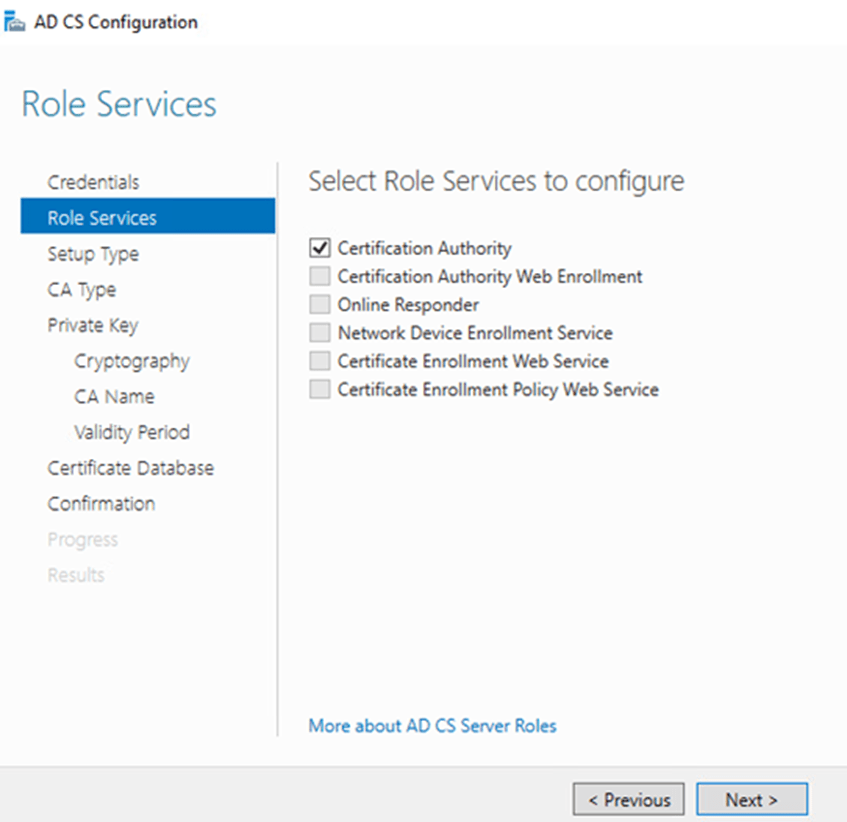
    Click next, Click next Select “Certificate Authority” then next

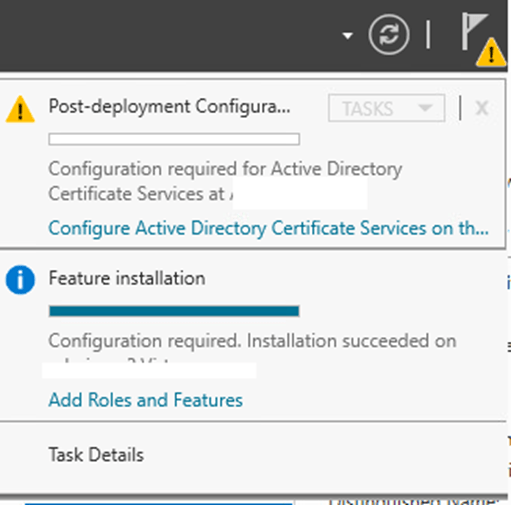
    Install –> Close –> Click Configure Active Directory Certificate Services on the notification

    Supply the credentials and click next Click Certificate Authority, then Next

    Select “Stand-Alone CA” click Next
    Select Root CA then next
    Create a new private key then next
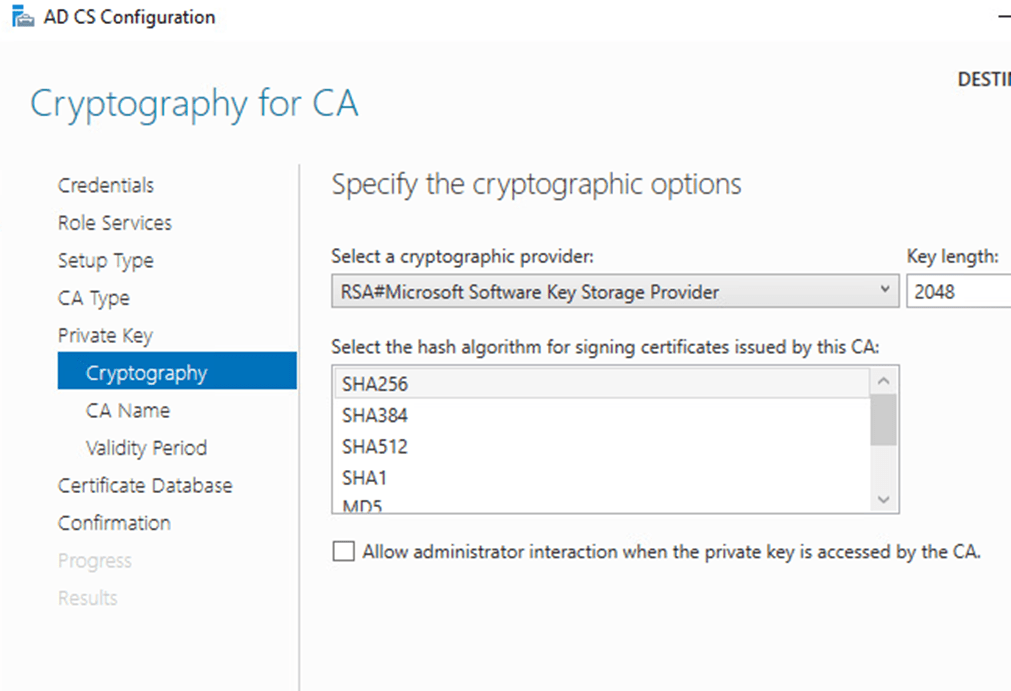
    Select your preferred key length then next

    Specify Name of the CA then Next
    Click next on the location.
    Confirm then click configure.

    This is the time to fix your extensions “CDP/AIA”
    Once done navigate to C:\Windows\System32\CertSrv\CertEnroll
    Grab the two files you will need these for the subordinate CA servers

    (Second Step) Creating the Subordinate and Web Enrollment Certificate servers

    Create Server(s) and join to domain
    Add Roles and Features
    Click Next, Select Role Based Click Next, Click Next
    Click on Active Director Certificate Services, Click Add Features, Click Next
    Click Next, Next Select the following

    Click Install
    Configure the Activate Directory Certificate Services

    Use a credential that is a member of the enterprise admins then click next
    Select the roles then next

    Select Enterprise CA click next
    Select Subordinate CA Click next
    Select create a new private key then next
    Choose the Cryptography then next
    Supply the Names then next
    Remember the req file location then Click next
    Click Close
    Copy the req file from the Enterprise Server CA to the Offline Root Server
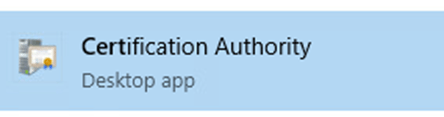
    Login to the offline root server and open Certificate Authority

    Right Click on the CAName, click on extension and update the details for CDP and AIA, click ok
    Right Click on the CAName again, All Tasks, then Submit New request

    Find the copied req file from the enterprise CA server then Click Open
    Click on Pending Requests

    Issue
    Go to Issued Certificate
    Open the certificate then click details
    Click Copy to file
    Select the options below

    Save the file

    On the offline root server copy the certificate you just issued and the two files located here C:\windows\system32\CertSRV\Certenroll

    GO back to the enterprise root server and execute the commands below

    certutil –dspublish –f C:\CompanyRoot-RootCA.crt RootCA

    certutil –addstore –f root C:\CompanyRoot-RootCA.crl

    certutil –addstore –f root C:\CompanyRoot-RootCA.crt

    certutil -installCert C:\Company-IssuingCA.p7b

    Open the CA and start services

    BONUS – Your offline root is set to issue certificates for only 1 year, If you want to have the Intermediate certs more than 1 year use the commands below on your offline root cert before issuing the Certs for Subordinates (below is an example for 5 years)

    certutil -setreg ca\ValidatePeriod “Years”
    certutil -setreg ca\ValidityPeriodUnits 5

  • Install VRA (Aria Automation) 8.16 using LCM

    January 31st, 2024

    Setting up Aria Automation 8.16 using LCM

    First step is to login to LCM and Apply Product Support Pack (Click Lifecyle operations, settings, product support pack, check support packs online) | https://yourLCM.url.com/lcm/lcops/settings/pspack

    Check request details


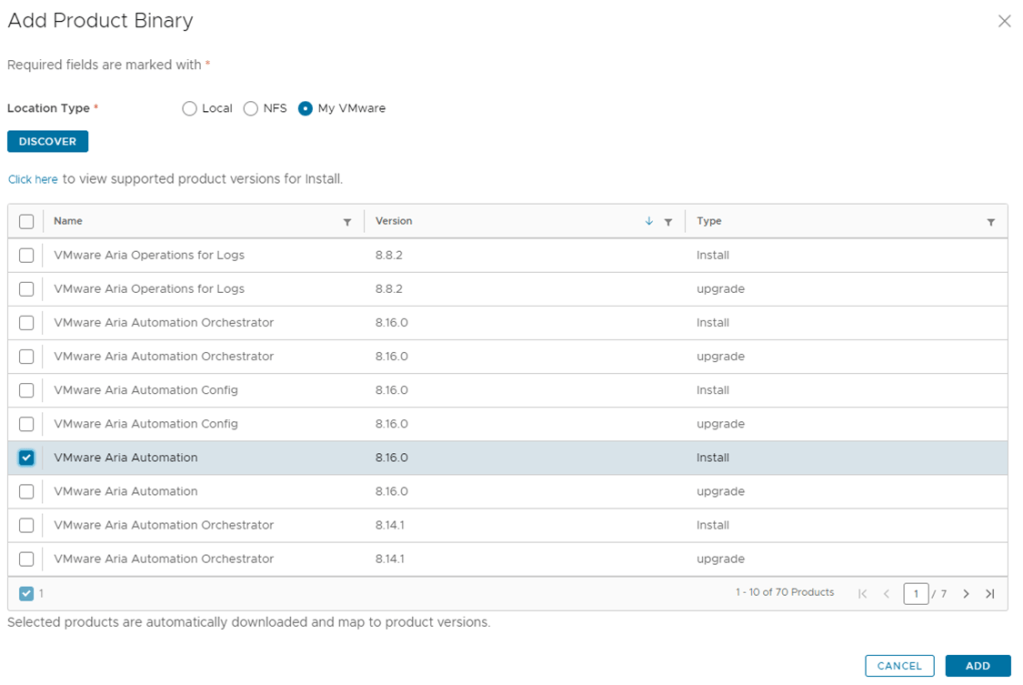
    Add the Binaries


    Once Completed click on “Create Environment on the left navigation”

    Enter your Details

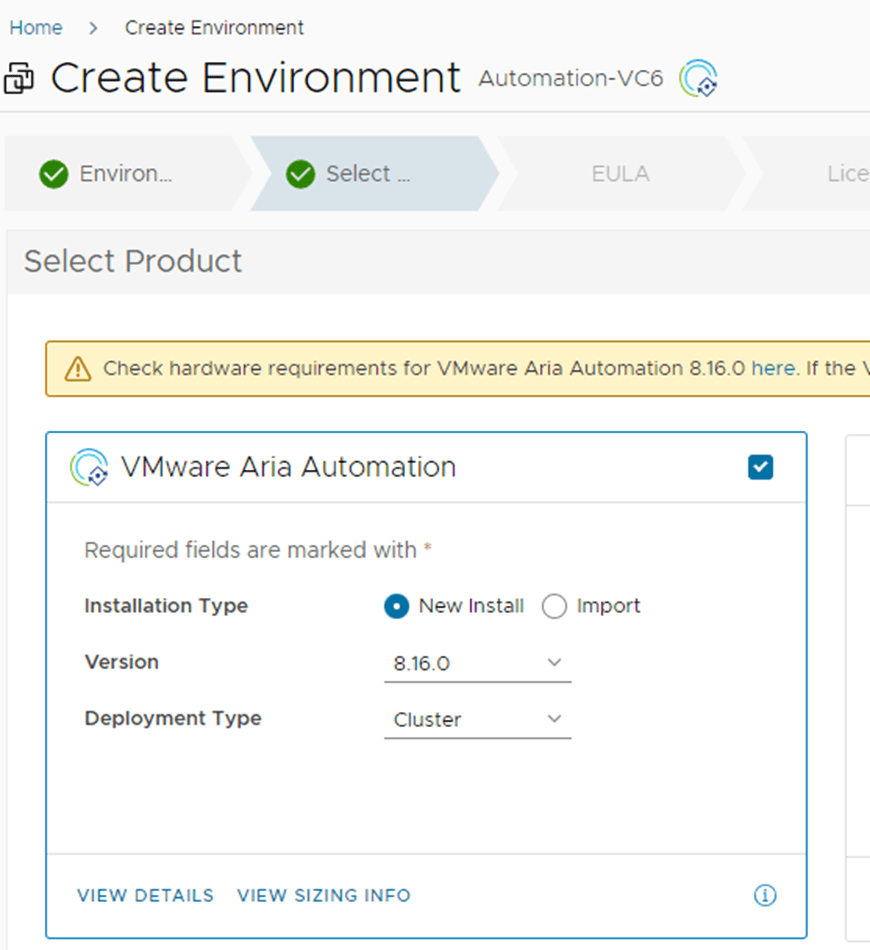
    Click on the VMware Aria Automation Box (use standard for deployment type if you don’t need a cluster)

    Accept EULA

    Assign your license (Select on the license then click Validate Association)
    Select a certificate (you can use a self signed certificate or create a custom one)


    Infrastructure

    Enter your network details on the next screen

    When you are in the Products section select the node size, FQDN, IP, VM name

    Click next when finished

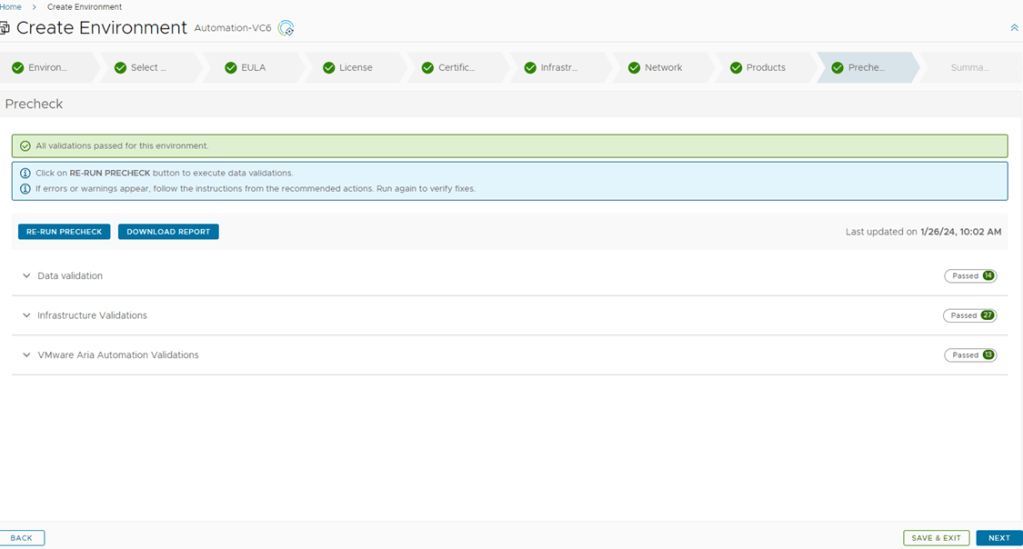
    Run the pre-check

    Click Next if everything looks good

    Submit and wait until the environment is setup


    Once done you are ready to login

    It is important to use the “Configuration Admin” account you have in VIDM not local/super admin.

    If you are not sure about the password login to VIDM as the local admin and edit the account.

    Once logged in you use the QuickStart for a quick setup

    Stay tuned for my post about creating your new blueprint

  • How to update VxRail using Internet Updates

    December 28th, 2023

    Big thanks to Fred K. for helping out on this (mostly his steps)

    Here is a quick how to:
    How to update using the VxRail Updates (Dell might have a better one but this is my process that worked 🙂 )

    Make sure to take a Snapshot (vCenter and VxRail appliance)

    The update process
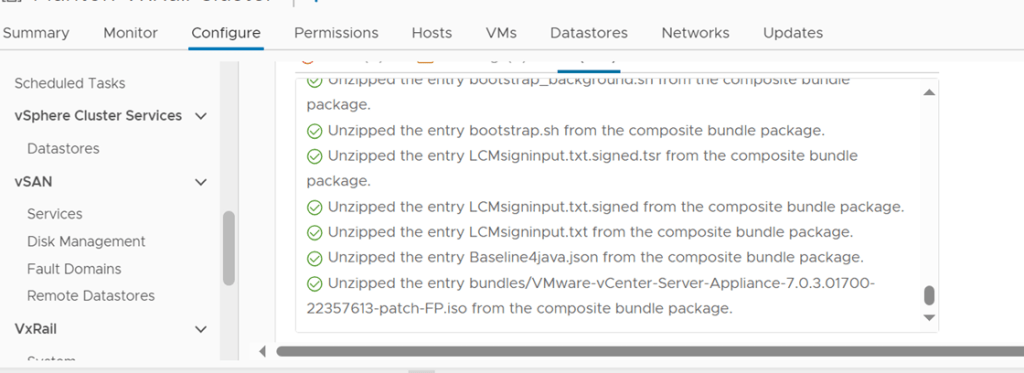
    VxRail will download the updates
    VxRail will stage the updates
    VxRail manager will be updated and rebooted
    vCenter will be updated and rebooted
    hosts will have drivers and ESXI update then reboot

    Step 1.

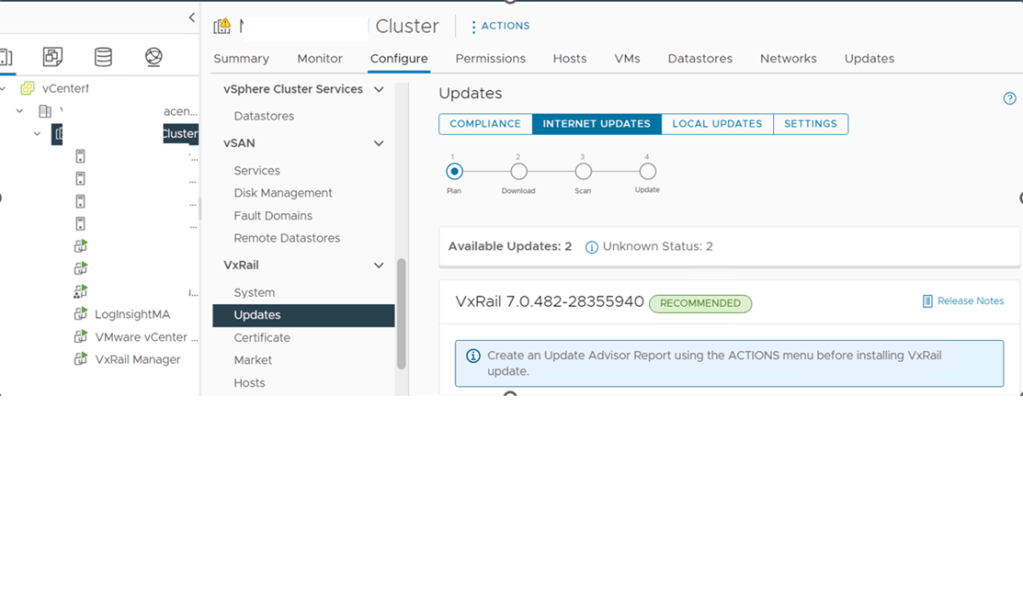
    Login to vCenter –> Click on the Cluster that you want to update –> Click Configure –> VxRail –> Updates –> Internet Updates

    Optional : Create an update advisor


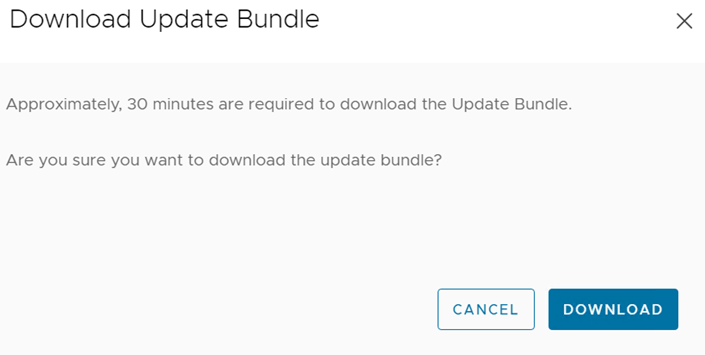
    Click on Download and install or schedule the update


    At this point, this will take a while so be patient
    I suggest opening a putty session to the manager and also monitoring it using that session ( when the manager reboot you will need to re-establish connection )

    The command is tail -f /var/log/mystic/lcm-web.log


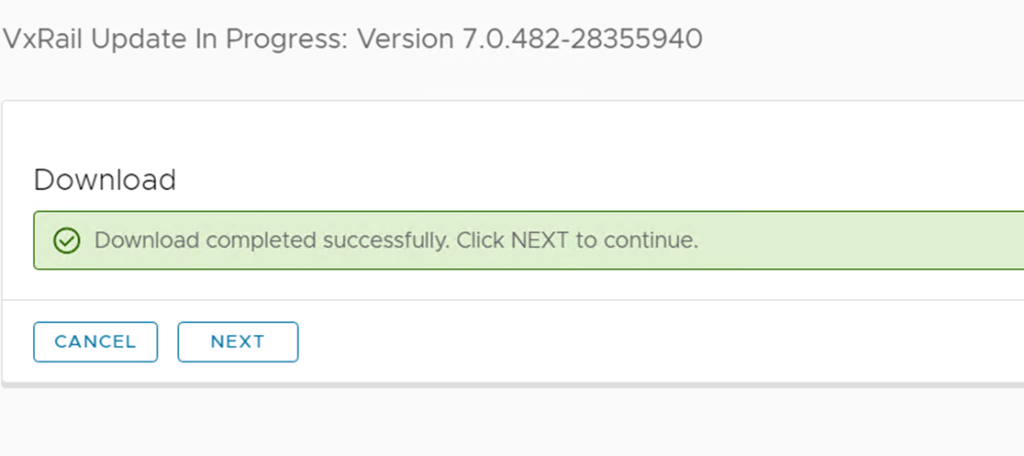
    When the download is complete click next

    Just hold and watch the fun

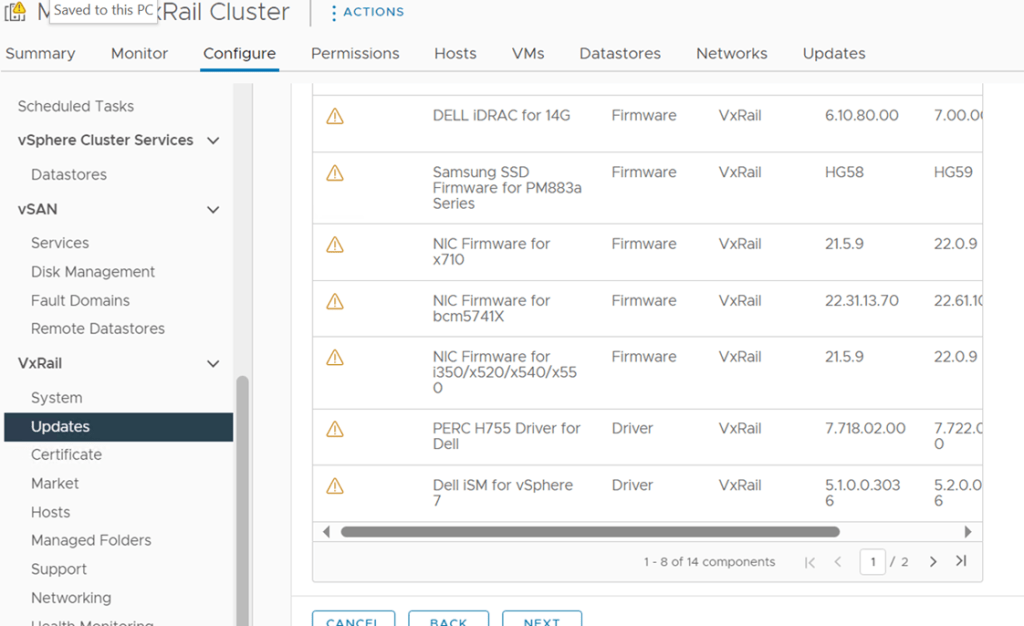
    Review and click next

    Click Update

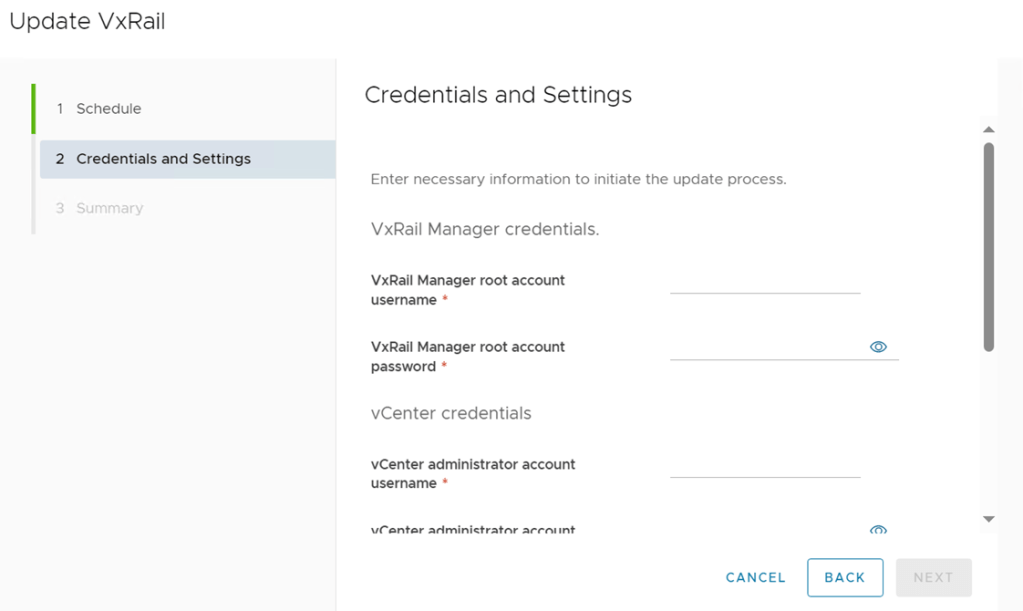
    Enter the credentials
    Username is case sensitive

    Once the credentials are verified click Finish

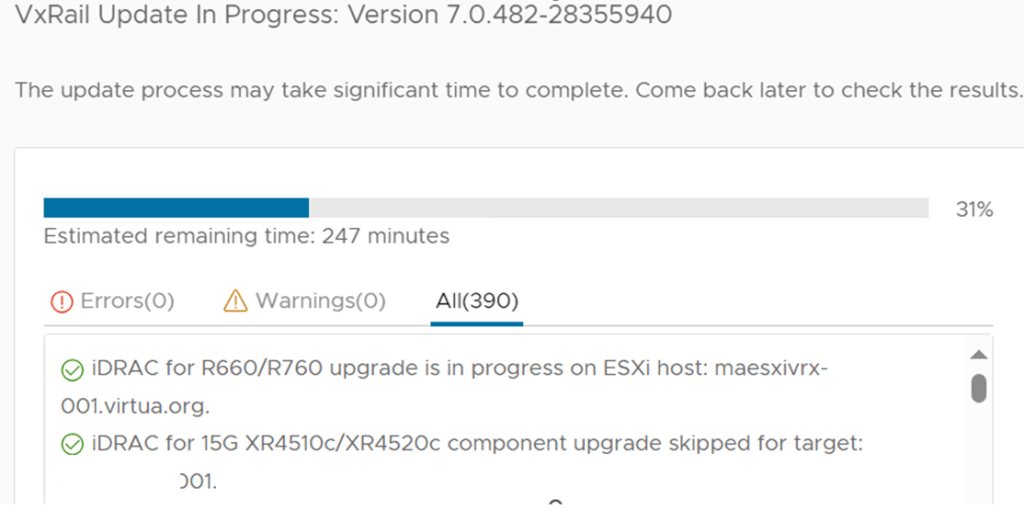
    I highly recommend looking at the progress screen from time to time
    Get your iDrac/Console credentials ready just in case a host gets stuck

    This is the message that you will see when vCenter is being upgraded

    Once vCenter is completed check the VCSA

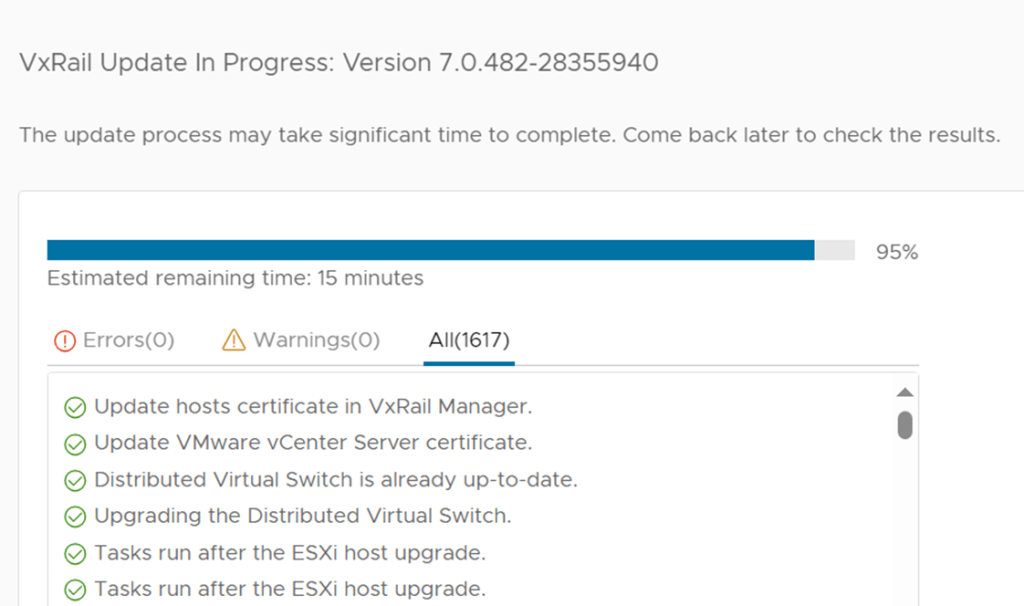
    Once vCenter is completed the hosts will be next
    Suggestion: Keep an eye on the recent tasks, as you know some VM might not migrate and you will need to manually vmotion or restart the guest OS

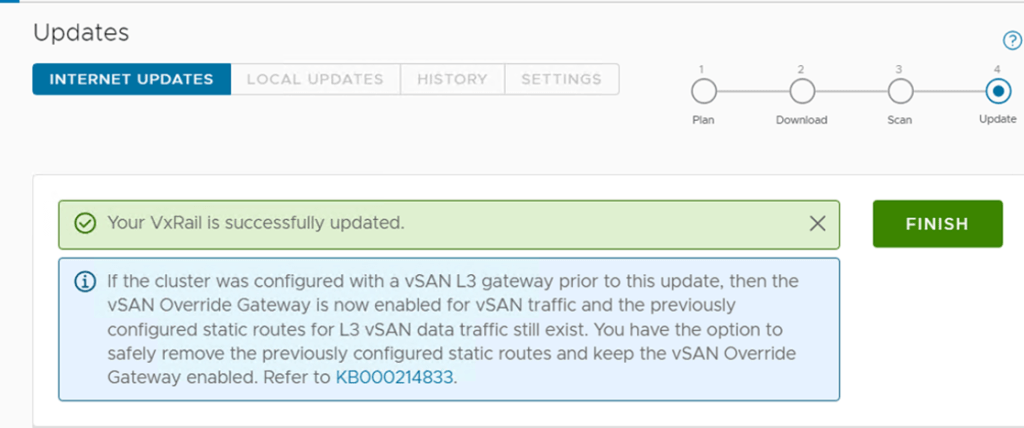
    At this point you are mostly done

    Click Finish

  • How to manually upgrade ESXi hosts

    December 11th, 2023

    I had a problem where the Update Manager was not working on a specific host, VMware support wasn’t really helping so I decided to ask around and found that it can be done in the command line

    Steps

    1. Download the Depot
    2. Upload the file to a storage that the host can access
    3. Put the host in Maintenance mode
    4. SSH to the host
    5. View the uploaded zip/file
      esxcli software sources profile list -d /vmfs/volumes/VMFS-Identifier-here/VMware-ESXi-7.0U3m-21686933-depot.zip
      (how to find the “identifier” login to vSphere Client, Click on the storage, Summary Tab, And look for “URL:” /volumes/identifierlisted
    6. This will list all the profiles inside the zip file
    7. esxcli software profile update -p ESXi-7.0U3m-21686933-standard -d /vmfs/volumes/VMS-Identifier-Here/VMware-ESXi-7.0U3m-21686933-depot.zip
    8. Reboot
  • Updating vCloud Director Certificate using *.wildcard

    December 11th, 2023

    If you are a Windows admin and don’t have openSSL make sure to install it now, your certificate might not be in .pem and you will need that specific format

    Steps:

    1. Rename your .pem and .key files to user.http.pem and user.http.key
    2. Copy the files to /opt/vmware/vcloud-director/data/transfer/ folder (I use Winscp).
    3. SSH into the appliance
    4. Change the owner and the group permissions on the certificate files to vcloud
      chown vcloud.vcloud /opt/vmware/vcloud-director/data/transfer/user.http.pem
      chown vcloud.vcloud /opt/vmware/vcloud-director/data/transfer/user.http.key
    5. Verify that the owner of the certificate files has read and write permissions.
      chmod 0750 /opt/vmware/vcloud-director/data/transfer/user.http.pem
      chmod 0750 /opt/vmware/vcloud-director/data/transfer/user.http.key
    6. Run the command below
      /opt/vmware/vcloud-director/bin/cell-management-tool certificates -j –cert /opt/vmware/vcloud-director/data/transfer/user.http.pem –key /opt/vmware/vcloud-director/data/transfer/user.http.key –key-password root-password
    7. /opt/vmware/vcloud-director/bin/cell-management-tool cell -i $(service vmware-vcd pid cell) -s
    8. wait for at least a minute then execute the command below
      systemctl start vmware-vcd


  • Finally got my VCIX-DCV badge!

    December 11th, 2023

    On

    June 21, 2023

    I’ll highlight the most important things first before I’ll give you the full details. Below is mostly pertaining to the deploy exam (3V0-22.21N)

    note: I passed this the 2nd time, the first attempt I was off by 6 points to pass, and I blame the exam for a little bit as it was broken. There was a long wait before retaking because they were fixing the issue, I had to wait almost 3 months, I was sad but never gave up!

    1. Take this exam at home or somewhere where there is a big monitor that handles great resolution
      If you take this in Pearson VUE testing center you might run to the same problem that I had, the resolution was not great and you had to play with the floating bar and actual lab, this can get annoying and time consuming.
      If there are multiple test takers and the proctor is busy you will wait for your turn if you are having issues in your exam, if you did this at home Pearson is a call away.
    2. Read the blueprint! Everything laid out there is the exam itself
    3. Don’t take this exam if you have not deployed vCenter and created clusters and added hosts.
      This exam is an actual deployment of the environment, with some support
    4. Experience will help you pass this exam
    5. Don’t wait for the task to complete per question, some can take a while.
    6. I highly suggest using two tabs, one with the current question then switch to the other tab to proceed with the next question

    I still can’t believe it!

    3 years ago I was just dreaming of becoming a VCIX!
    This deploy exam is my favorite exam of all the exams I have taken, it’s all Interactive with no multiple questions! the help command also works in esxi:)
    oh my! I am loss for words with this one. I want to thank everyone that I worked with in the past years and gave me the chance to learn VMware. Now… Do I go for VCDX or ?

    Tips:
    Learn how to setup a VMware environment from scratch
    Learn how to create clusters, add hosts, vds, vmkernels
    Learn VSAN
    Learn basic esxi and vimtop commands
    Experience! If you have the opportunity for break / fix scenario, take that task!

  • My previous blog site had problems

    December 11th, 2023

    So my previous site had problems with the domain, dont ask why but I had issues with Customer Service and support and I told them you know what just close it 😀 so here we go creating a brand new site and of course adding my archives

←Previous Page
1 2

Blog at WordPress.com.


Loading Comments...
 

    • Subscribe Subscribed
      • Tech Dad
      • Already have a WordPress.com account? Log in now.
      • Tech Dad
      • Subscribe Subscribed
      • Sign up
      • Log in
      • Report this content
      • View site in Reader
      • Manage subscriptions
      • Collapse this bar